Task Block
The Task block lets you capture a real, trackable task from inside a narrative — without leaving the page, opening the task panel, or losing your train of thought.
When you are documenting an Application (or any other model item) and spot something that needs doing — “the Checkout Service needs a rate-limit added”, “confirm the payment gateway timeout” — type /task right where you are writing. ArchRepo creates a proper task, links it to the item you are documenting, and shows it inline as a live card. The narrative becomes the place where work is captured, not just described.
A task created from a narrative is a normal task. It appears in the model item’s Tasks section and in your My Tasks dashboard, and can be assigned, scheduled, and completed like any other.
Inserting a Task
- Make sure the narrative is in edit mode (click Edit in the floating toolbar).
- Click where you want the task, then type
/. - Type
task(ortodo, oraction) and select Task from the Actions group in the slash menu.
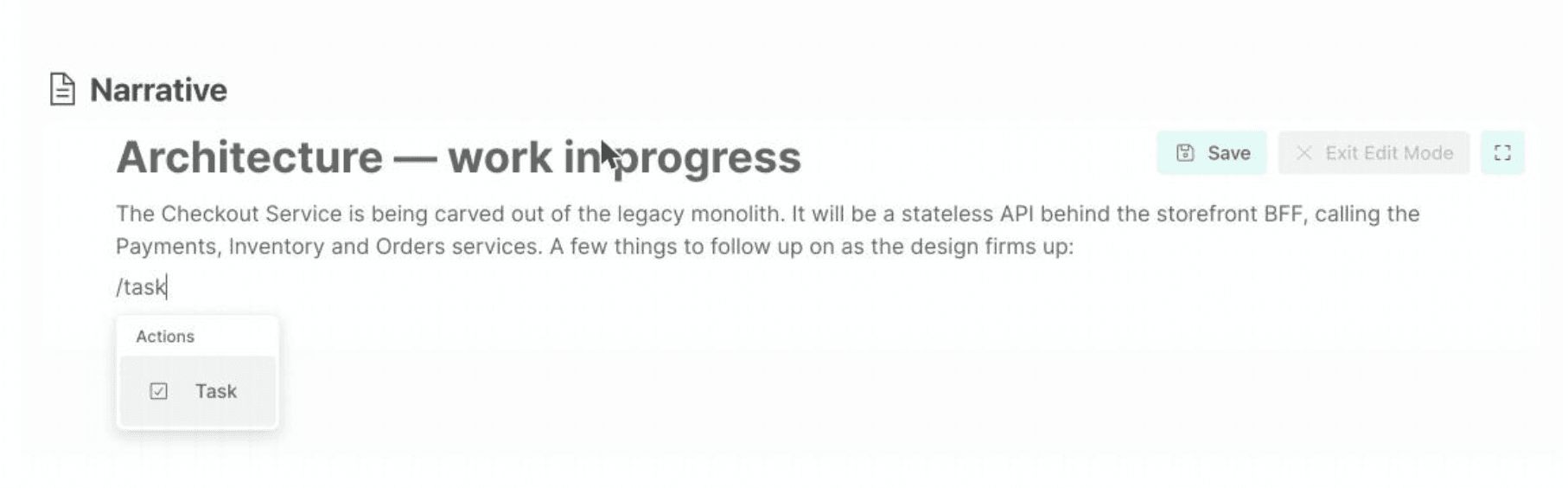
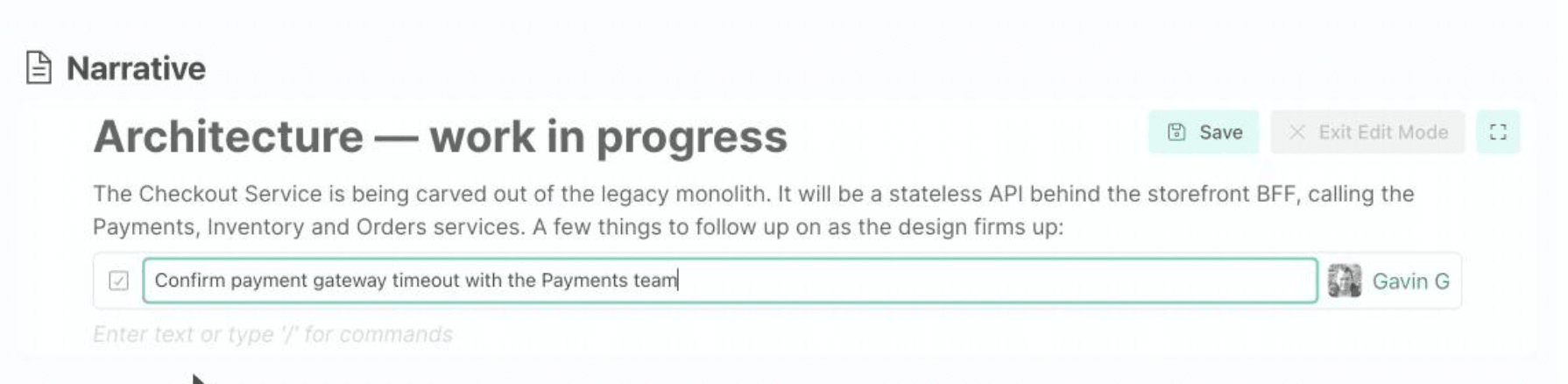
A new task is inserted in draft state, with the title field focused and ready for you to type.
The Draft State
Before the task is created, the block shows a small inline form:
- A title field — type a short, clear description of the task.
- An assignee picker — defaults to you. Click it to choose a different project member.
To finish:
| Action | Result |
|---|---|
| Press Enter, or click/tab outside the block | Creates the task |
| Press Escape | Removes the draft — no task is created |
A draft with an empty title is ignored — the task is only created once you give it a name.
If creation fails for any reason, the block stays in draft state and shows an inline error so nothing is lost — just try again.
The Created Task Card
Once created, the block becomes a compact, live task card that mirrors a row in the model item’s task list:
- A checkbox — tick it to mark the task Done, untick to reopen it.
- A status badge — To Do, In Progress, Blocked, Done, and so on.
- The task title.
- A progress bar showing percentage complete.
- The assignee avatar.
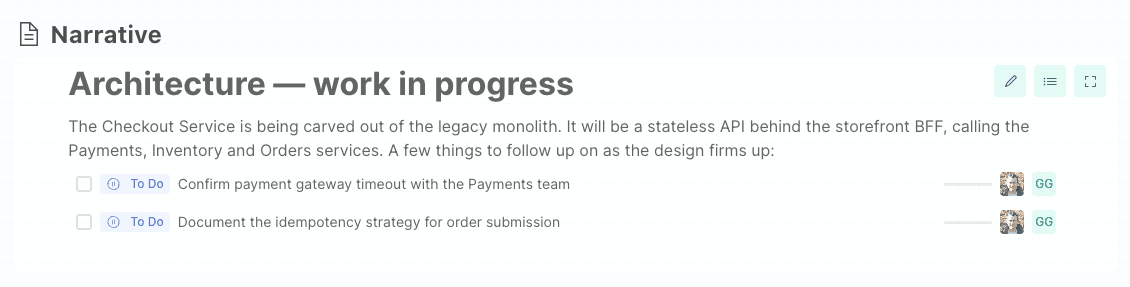
The card stays in sync with the task. If you (or someone else) change the task’s status from the task list or My Tasks, the card updates on its own — no page reload needed.
Editing the task inline (edit mode)
While the narrative is in edit mode, you can manage the task directly from the card:
| To change… | Do this |
|---|---|
| Status | Click the status badge and pick a new status, or tick the checkbox to toggle Done |
| Assignee | Click the assignee avatar and choose a project member |
| Title | Click the title — it becomes an input. Press Enter to save, Escape to cancel |
These inline controls appear in edit mode only. When the narrative is read-only, the card shows the task’s current status, title and assignee as a clean, static summary.
Where the Task Appears
A task created in a narrative is linked to the model item you are documenting. You will find it in three places:
- Inline, as the card in the narrative.
- In the model item’s Tasks section (under Project Management on the Specification tab).
- In your My Tasks dashboard, since new tasks are assigned to you by default.
Changes made in any of these places are reflected in the others.
If a Task Is Deleted
Tasks can be deleted elsewhere — from the task list or My Tasks. If the task referenced by a block no longer exists, the block does not break your narrative. It simply shows a muted “Task no longer exists” message in its place, and the narrative continues to save normally.
Deleting the block from the narrative is independent of the task: removing the card does not delete the underlying task, and deleting the task does not remove your narrative.
Markdown Export
When a narrative is exported to Markdown, each task block is rendered as a checklist line reflecting its live status:
| Status | Exported as |
|---|---|
| Open (To Do, In Progress, etc.) | - [ ] Task title (assignee@example.com) |
| Done | - [x] Task title |
Tips
- Capture first, refine later. The point of
/taskis speed — jot the task down while you are thinking about it. You can set the assignee, due date, and estimate later from the Tasks section. - Keep titles action-oriented — “Add rate limiting to the Checkout Service” reads better in a task list than “rate limiting”.
- Use it while writing Application, System, or Requirement narratives to turn observations into tracked work as you document.