Callout Block
The Callout block lets you highlight a short piece of important information directly within a narrative. Use callouts for messages that readers should not miss — a caution before a risky step, a helpful tip, a critical issue, or a quick note that needs to stand out from the surrounding text.
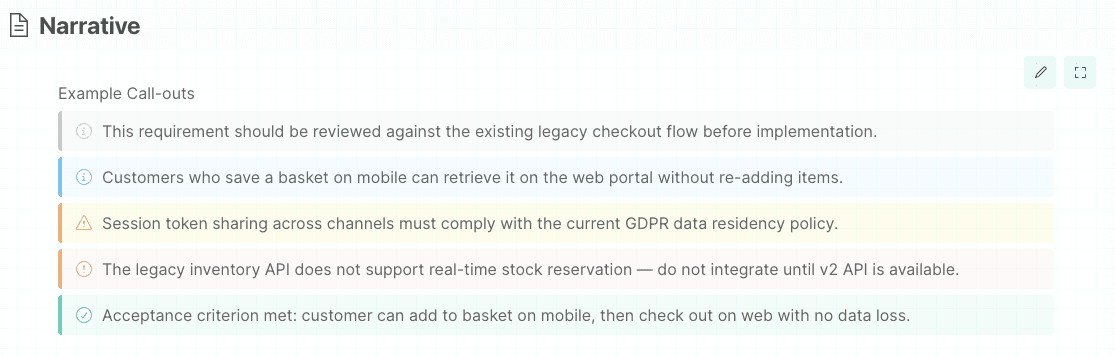
Callouts come in five variants, each with a distinct colour and icon that signals the nature of the message at a glance.
Inserting a Callout Block
- In the narrative editor, click where you want the callout to appear.
- Type
/to open the slash command menu. - Type the name of the variant you want — for example
callout,warning, ortip— and select it from the list. - A callout block is inserted at that position. Start typing your message.
Typing /callout or /note inserts the default Note variant. To insert a specific variant directly, type its name — for example /warning — and select it from the menu.
Callout Variants
Five variants are available, each suited to a different kind of message:
| Variant | Slash command | Aliases | Use for |
|---|---|---|---|
| Note | /Callout | callout, note | General observations or background context |
| Info | /Info | info | Helpful tips and supplementary information |
| Warning | /Warning | warning, caution | Cautions — something that could cause problems if missed |
| Error | /Error | error, danger | Critical issues, known errors, or hard stops |
| Success | /Success | success, tip | Positive outcomes, completed steps, or recommended approaches |
Changing the Variant
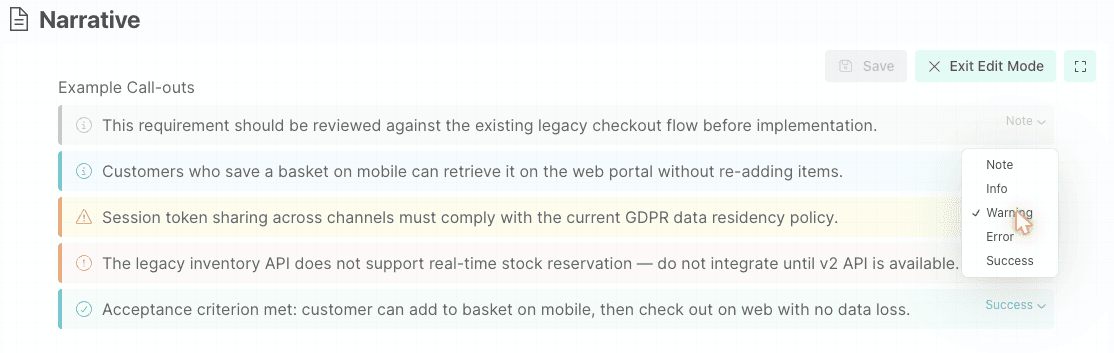
If you inserted the wrong variant, you can switch it without retyping the content:
- Make sure the narrative is in edit mode.
- Click inside the callout block.
- A type selector appears on the right side of the block.
- Choose a different variant from the selector.
The colour and icon update immediately. Your text is unchanged.
The type selector is only visible in edit mode. In read-only mode, callouts are displayed without editing controls.
Formatting Inside a Callout
Callout content is inline text. You can apply any of the standard inline formats — bold, italic, underline, inline code, and hyperlinks.
Callouts are designed for short, focused messages. They do not support nested blocks such as bullet lists, tables, or embedded diagrams.
Markdown Export
When a narrative is exported to Markdown, callout blocks are rendered as block quotes with a bold label:
| Variant | Exported format |
|---|---|
| Note | > **Note:** your text |
| Info | > **Info:** your text |
| Warning | > **Warning:** your text |
| Error | > **Error:** your text |
| Success | > **Success:** your text |
Tips
- Use callouts sparingly. A page full of callouts loses its impact — reserve them for information that genuinely needs to stand out.
- Place Warning and Error callouts immediately before the step or section they relate to, so readers see them at the right moment.
- Success and Info callouts work well as summaries at the end of a section — for example, confirming what a correct outcome looks like.
- Keep callout text short. If a note runs to several sentences, consider whether it belongs in the main body text instead.