User Interaction Context Diagrams
A User Interaction Context diagram answers a question non-technical stakeholders ask constantly: which kinds of user can reach which applications, and what can they do there?
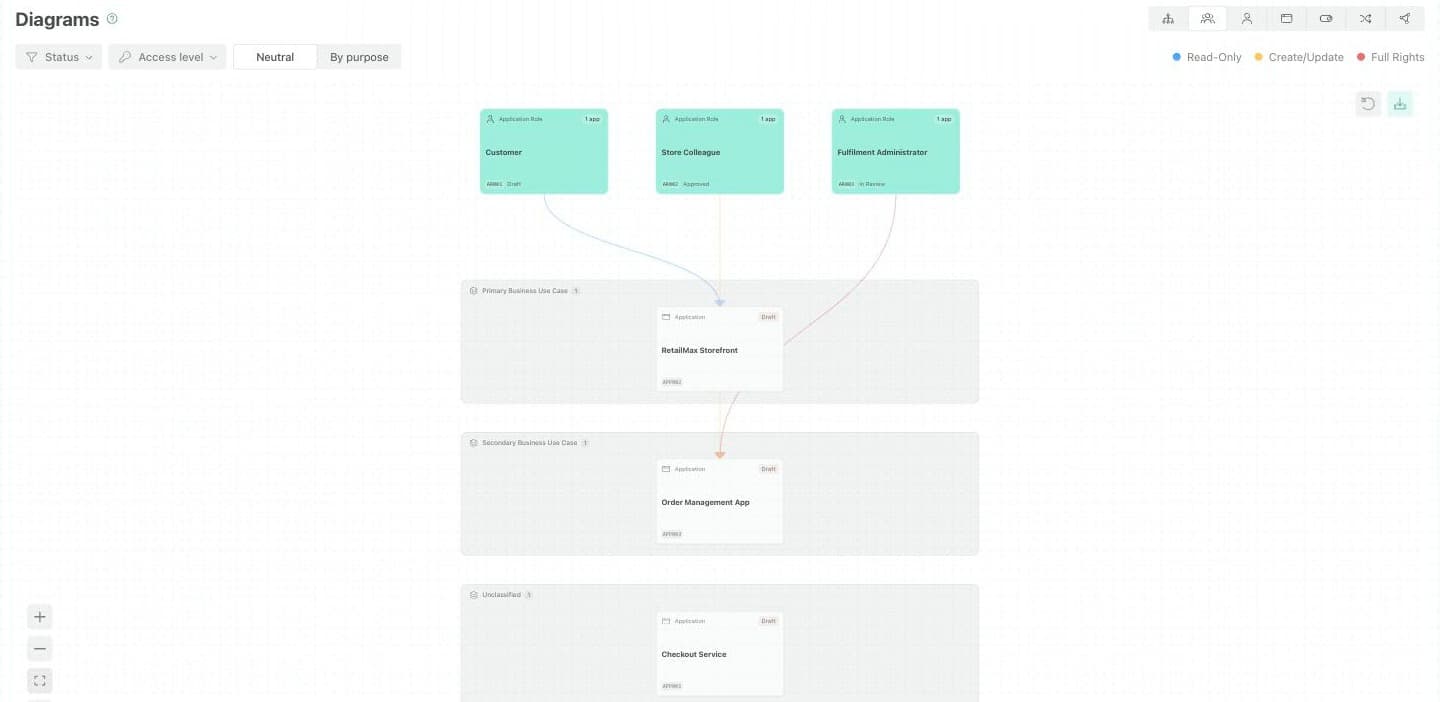
It is drawn fresh from the model every time you open it. Application roles sit along the top, the applications they can use sit below, and a coloured line joins each role to each application it can reach.
This diagram is read-only. To change what it shows, change the roles, applications and access relationships behind it.
How Roles Connect to Applications
Each application role (a type of user, such as Customer or Store Colleague) is joined to an application by one of three relationships. Each relationship gives the line a colour and a label:
| On screen | Relationship that produces it | What the role can typically do |
|---|---|---|
| Read-Only | has Read Access to | View records, but not change them. |
| Create/Update | has Write Access to | Create new records and update existing ones, but not delete them. |
| Full Rights | has Admin Access to | As Create/Update, plus delete records. |
The key in the top-right of the diagram shows the colour for each level. Each role card also shows how many applications it can reach.
These levels describe a person’s permissions in an application. They are not the same thing as the Read, Write and Admin data access shown on the Application diagram, which describes what an application does to a data set — even though the model records both with the same three relationships. Read the colour by which diagram you are looking at.
Purpose Bands
Applications are grouped into bands by their Purpose property, from most business-facing to most technical:
- Primary Business Use Case
- Secondary Business Use Case
- Data Administration
- System Administration
- External (From another system)
- Unclassified — an application whose Purpose is missing or unrecognised.
A band with no applications is not drawn, so you see only the bands your model populates. If an Unclassified band appears, set the Purpose on those applications.
The Controls
| Control | What it does |
|---|---|
| Status | Show only roles and applications at the statuses you choose. Leave nothing checked to show every status. |
| Access level | Show only the levels you choose — Read-Only, Create/Update, Full Rights. Leave nothing checked to show all three. |
| Purpose band colour | Neutral draws every band in grey. By purpose tints each band by its Purpose. |
Your selections are held in the page address, so a shared link shows the same view.
Click Through
- Click a role to open the Application Role diagram focused on that role.
- Click an application to open the Application diagram focused on that application.
Application Role
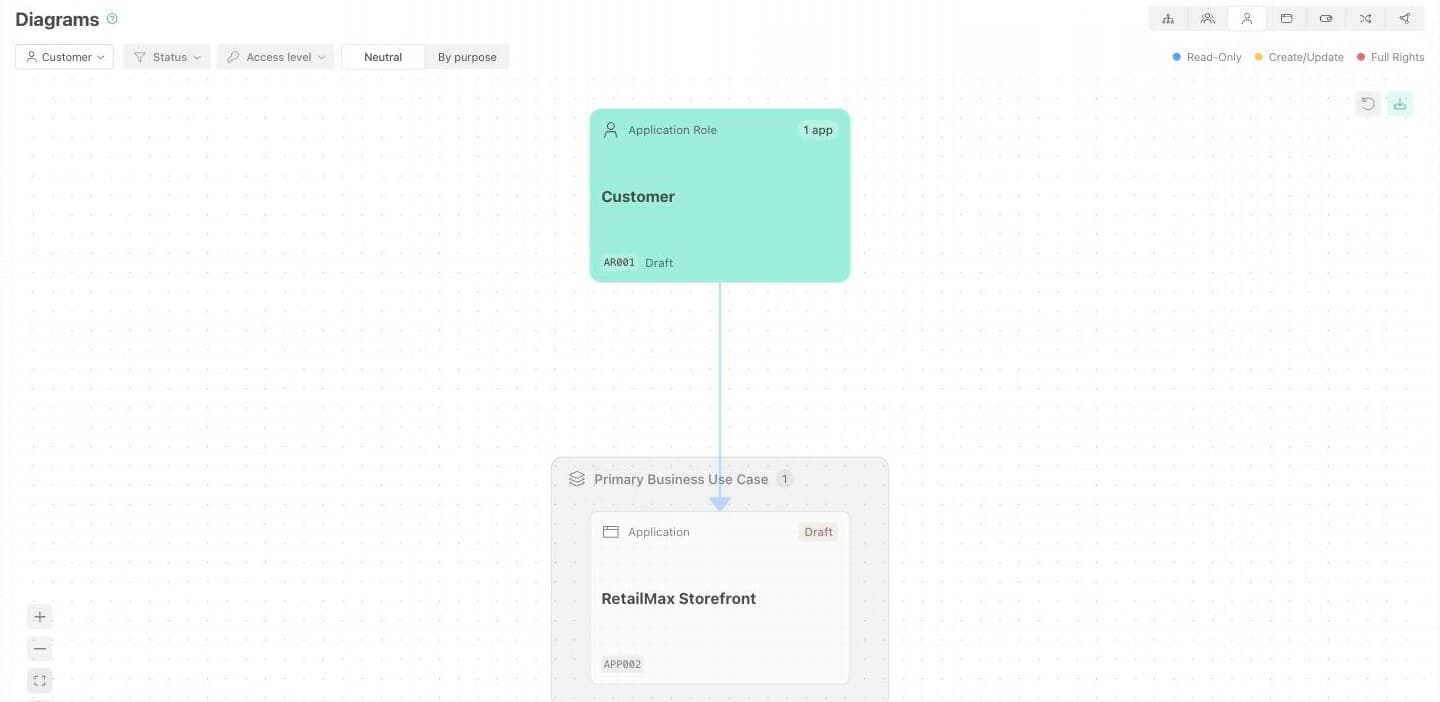
The Application Role diagram is the same view narrowed to one role and only the applications that role can reach. It has the same controls, plus a role selector on the left.
Open it in either of two ways:
- Choose Application Role in the Diagrams switcher, then pick a role in the role selector.
- Click a role on the User Interaction Context diagram.
Applications are grouped into the same Purpose bands, and clicking one opens the Application diagram.
When the Application Role Diagram Is Empty
Three different messages, meaning three different things:
| What you see | What it means |
|---|---|
| ”Choose an application role above to see the applications it uses.” | No role is selected. Pick one in the role selector. |
| ”This application role cannot be shown here…” | The role in the link no longer exists, belongs to another project, or has no application access. Pick another role. |
| ”This role uses no applications.” | The role has no application access — or your Status or Access level filter has hidden all of it. Clear the filters first. |
Where to Find It
Open the project’s Diagrams tab and choose User Interaction Context or Application Role in the switcher.
Why Is My Diagram Empty?
The diagram is built from applicationRole items, application items, and the relationships between them. If it looks empty:
- No roles or applications are modelled. Add at least one application role and one application.
- Nothing connects them. A role is only joined to an application by a has Read Access to, has Write Access to or has Admin Access to relationship from the role to the application. A role with none has no line and shows no applications.
- A filter is hiding everything. A Status or Access level selection that matches nothing shows the same message as a project with no roles at all. Clear the filters — you do not need to change the model.
| What you see | What it means |
|---|---|
| ”No application roles or applications found for this project.” | No roles or applications are modelled — or a Status or Access level filter matches none of them. Clear the filters first, then add the missing items. |