Mermaid Diagram Block
The Mermaid Diagram block lets you write a diagram as text and have it rendered as a visual diagram directly inside a narrative. You describe the diagram using Mermaid — a simple text-based syntax — and ArchRepo draws it for you automatically.
This is useful for flowcharts, sequence diagrams, entity-relationship diagrams, and other architectural visuals that need to stay close to the written documentation. Because the diagram is defined as text, it is easy to version, review, and update without any external diagramming tool.
When you edit a Mermaid block, a split-pane editor opens — write your diagram code on the left and see a live preview on the right. You can also use the built-in AI assist to generate or update diagrams from a plain-English description.
Inserting a Mermaid Diagram Block
- In the narrative editor, click where you want the diagram to appear.
- Type
/to open the slash command menu. - Type
mermaidand select Mermaid Diagram from the list. - A Mermaid diagram block is inserted at that position.
The Diagram Editor
Clicking Edit on a Mermaid block opens the Edit Mermaid Diagram dialog.
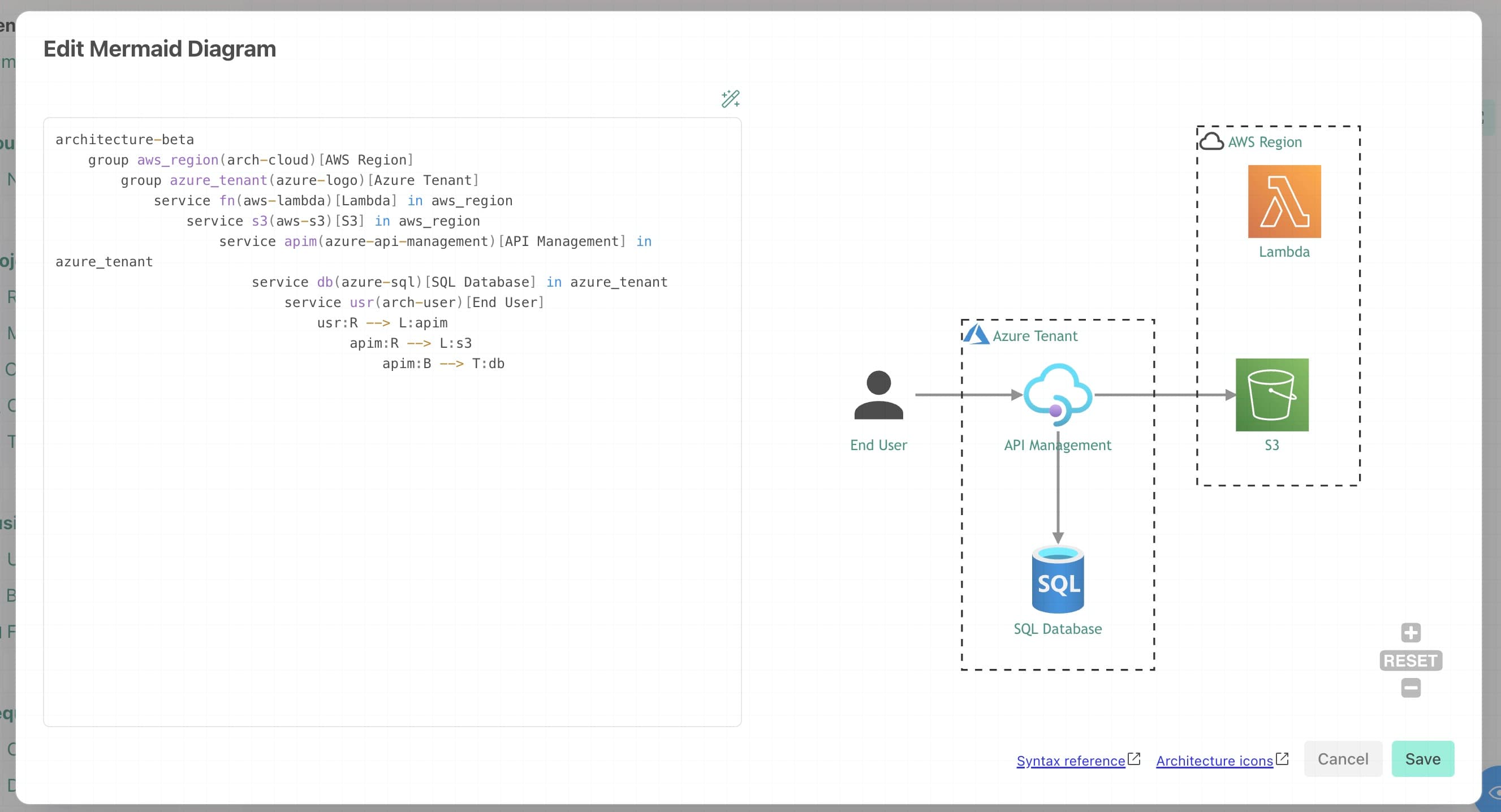
The editor has two panes side by side:
- Left — Code editor. Type or paste your Mermaid diagram definition here. The editor uses syntax highlighting to make the structure easier to read.
- Right — Live preview. The diagram redraws automatically as you type. There is no Apply button — the preview updates on its own.
When you are happy with the result, click Save to update the block. To abandon your changes, click Cancel — if you have made any edits you will be asked to confirm before the dialog closes.
Quick links to the Syntax reference and Architecture icons documentation are available in the footer of the dialog.
Example — simple flowchart:
flowchart LR
    Browser --> API
    API --> Database
Example — sequence diagram:
sequenceDiagram
    participant User
    participant API
    participant Database
    User ->> API: POST /order
    API ->> Database: INSERT order
    Database -->> API: OK
    API -->> User: 201 Created
If your Mermaid syntax contains an error, the preview pane displays an error message rather than a diagram. Correct the definition in the left pane and the preview will update automatically.
Editing an Existing Diagram
When the narrative is in edit mode, an Edit button appears below the rendered diagram. Click it to open the diagram editor dialog, make your changes, then click Save to update the visual.
The Edit button is only visible when the narrative is in edit mode. In read-only mode the diagram is displayed as normal with no editing controls.
AI Assist
The diagram editor includes an AI assist feature that can generate a new diagram or modify an existing one based on a plain-English description.
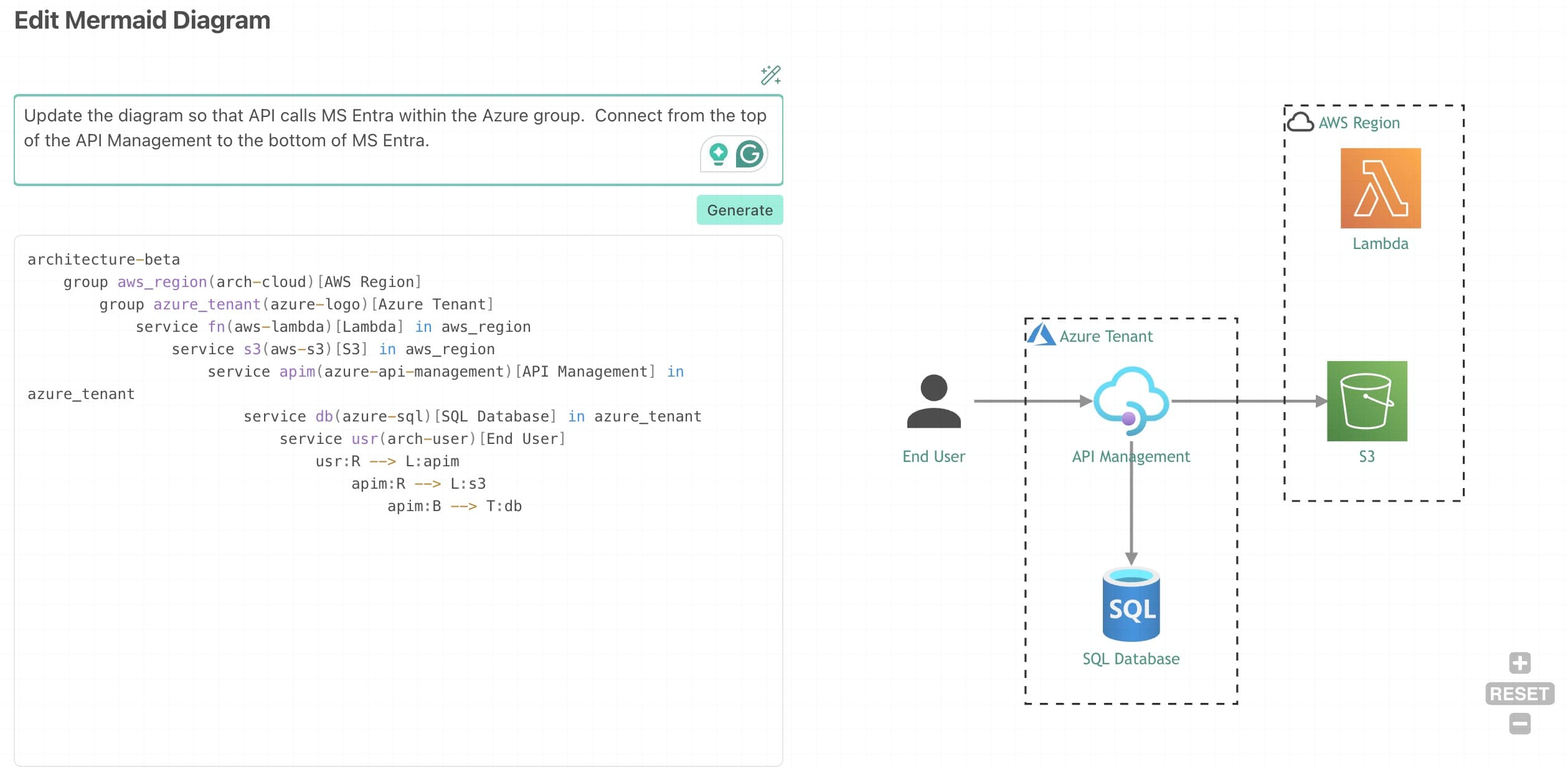
To use AI assist:
- Click the AI assist wand icon in the toolbar above the code editor.
- The AI panel opens below the toolbar. Type a description of the diagram you want, or describe the change you would like to make to the current one.
- Click Generate or press Cmd + Enter (Mac) / Ctrl + Enter (Windows).
- The AI updates the code editor and the preview redraws automatically.
If you are not happy with the result, click Undo AI change to revert to the version you had before generating. You can also edit the code directly after AI generation to fine-tune the output.
Press Escape to close the AI panel and return to editing the code manually — this does not close the dialog.
AI assist works from the diagram definition only. It cannot access the rest of your ArchRepo model — it cannot see specific named applications, requirements, data sets, or other items. If you ask it to diagram something from your repository, it will let you know that it is unable to do so.
Supported Diagram Types
Mermaid supports a wide range of diagram types. The most commonly used in architecture documentation include:
| Diagram type | Mermaid keyword | Use for |
|---|---|---|
| Flowchart | flowchart | Process flows, decision trees, system interactions |
| Sequence diagram | sequenceDiagram | Message flows between participants over time |
| Entity-relationship | erDiagram | Data model relationships |
| Class diagram | classDiagram | Object structures and inheritance |
| State diagram | stateDiagram-v2 | State machines and lifecycle flows |
| Gantt chart | gantt | Timelines and schedules |
| Architecture diagram | architecture-beta | Service and component topology with cloud and technology icons |
| Pie chart | pie | Proportional breakdowns |
For the full list and syntax reference, see the Mermaid documentation .
Tips
- For complex architecture diagrams with shapes, swimlanes, or custom styling, use the Draw IO Block instead — it provides a full visual editor.
- Keep diagrams focused on a single concept. A simpler diagram with a clear title is easier to read than a large, densely connected one.
- Mermaid diagrams are stored as text within the narrative, so they are fully searchable and version-controlled alongside the rest of the content.
- Use AI assist to generate a starting point quickly, then refine the code manually to get exactly the layout and detail you need.
For the full list of icons available in architecture-beta diagrams, see Architecture Icon Packs.